


What Is Task Manager? When to Use It and Where It Falls Short
Windows Task Manager Explained For Small Businesses – A Houston Office Guide To Windows Task Manager
A Houston IT checklist for when to open Task Manager, how to read it, and what Dave Plummer's new TMOG adds.
What is Task Manager? It is the Windows utility that lists every running app and background process, shows how much CPU, memory, disk and network each one is using, and gives you the power to end any of them. For most Houston offices it is the first thing someone opens when a PC freezes or starts crawling.
That moment usually plays out the same way. A spreadsheet stops responding, the fans spin up, somebody presses Ctrl+Alt+Delete, picks Task Manager, and starts ending whatever sits at the top of the list. Sometimes that fixes it. Often it only buys ten minutes before the same machine slows down again, and the help desk ticket that follows says "my computer is slow" with no clue about why.
This guide is a working checklist for that moment. It covers what each part of Task Manager is for, the situations where it gives you a real answer, the situations where its numbers mislead, and what changed this month when Dave Plummer, the Microsoft engineer who wrote the original Task Manager, released a rebuilt version called TMOG. CinchOps provides managed IT support specifically for Houston businesses with 10 to 200 employees, with help desk requests answered in under 15 minutes by a named engineer who already knows the network.
What Is Task Manager in Windows, and What Does It Do?
A plain definition, the pages inside Windows 11 Task Manager, and where the tool came from.
Windows Task Manager is a built-in system monitor that shows every running application and background process, measures what each one uses in CPU, memory, disk, network and GPU, and lets a user end a stuck program, disable startup apps, and manage services from one window.
Windows 11 organizes Task Manager into pages down the left side. Each one answers a different question about the machine in front of you:
- Processes lists apps and background processes with live CPU, memory, disk and network columns. This is where you end a frozen program.
- Performance graphs CPU, memory, disk, network and GPU over the last minute or so, including the current processor speed.
- App history shows cumulative resource use for apps over time, useful for spotting a data-hungry program.
- Startup apps lists everything that launches when Windows starts, with a startup impact rating and an enable or disable switch.
- Users shows who is signed in and what each account is running.
- Details is the old-style process list with process IDs, priorities and command lines.
- Services lets you start, stop and restart Windows services.
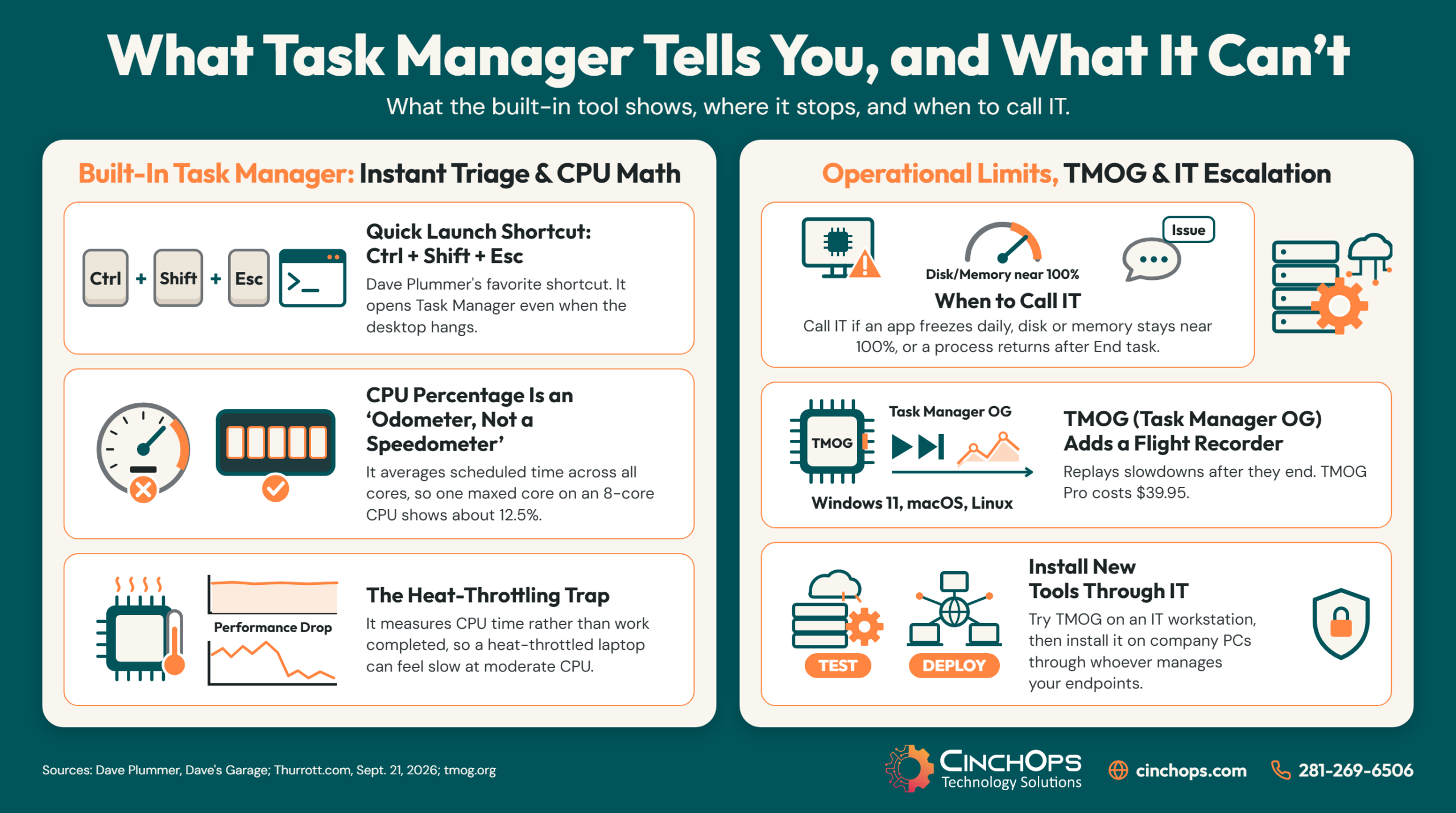
Dave Plummer wrote the first drafts of Task Manager at home in the early 1990s and brought it into Microsoft, where Windows NT designer Dave Cutler approved adding it to the Windows source tree. In his own walkthrough on the Dave's Garage YouTube channel, Plummer says the original was under 100K including all code and resources. His favorite way to open it is still the one he wired into the Windows logon process: Ctrl+Shift+Esc, which starts a fresh Task Manager even when the rest of the desktop is hung.
Plummer's video also covers tricks most people never find. Holding the Ctrl key while clicking Run new task opens a raw command prompt with Task Manager's credentials, a last resort when the shell will not start anything. Holding Ctrl+Shift+Alt while Task Manager launches, before its window appears, resets it to factory settings. Right-clicking any process and choosing Open file location shows exactly where the program lives on disk.
When Should You Open Task Manager?
Seven common office symptoms, the page to open for each, and the point where it stops being a Task Manager job.
Open Task Manager when a PC shows a specific, current symptom: a frozen app, a sudden slowdown, loud fans, a slow boot, or a process you do not recognize. It is a first-look tool for problems happening right now, and it works best when you check the matching page instead of sorting everything by CPU.
The checklist below is the order a CinchOps engineer runs through on a slow Houston office PC before reaching for anything heavier. Each line pairs a symptom with the one place in Task Manager that answers it.
Two lines on that list deserve a warning. End task discards unsaved work in the app you end, so give a "Not responding" window a minute before killing it. And do not end processes grouped under Windows processes unless you know exactly what they are. Plummer explains that the first version of Task Manager had no guard rails by design, so an administrator could end winlogon and blue-screen the machine on purpose. Microsoft added protective prompts in later versions after journalists demonstrated one-click crashes, but it is still easy to sign yourself out or kill the taskbar by accident.
If you mostly need to close stuck apps, Windows 11 also lets you end a task straight from the taskbar. Our guide to the taskbar End task button shows how to switch it on.
Why Does Task Manager Show Low CPU When the PC Feels Slow?
How Task Manager calculates CPU percentage, according to the engineer who wrote the formula.
Task Manager's CPU percentage is an average over the last refresh window, expressed as a share of the whole machine's capacity. One process maxing out a single core on an 8-core PC shows roughly 12 to 13 percent, and a PC can feel slow at low CPU because memory, disk or network is the real bottleneck.
In his video "Task Manager is LYING About Your CPU Usage," Plummer walks through his original code. Task Manager asks Windows for each process's cumulative CPU time, subtracts the previous reading, and divides by the total time consumed by every process, including the System Idle Process. He calls the result "an odometer, not a speedometer." The number describes what happened since the last refresh, not what is happening at the instant you look.
The bigger catch is that the accounting is time-based. Plummer points out that Task Manager measures how long a process was scheduled on a core, not how much work got done. Modern processors change clock speed constantly for power and heat, so a busy second at a throttled speed accomplishes far less than a busy second at full turbo, and the CPU column reads the same either way. He compares it to measuring how full a freeway is instead of how many miles were traveled.
That detail matters more in Houston than most places. A laptop that rides in a truck to a Katy job site or sits in a field trailer through a Gulf Coast summer can throttle hard from heat alone. The user feels a slow machine, Task Manager shows moderate CPU, and nothing looks wrong. The tell is on the Performance page: compare the current Speed reading with the processor's base speed. A laptop stuck well below base speed under load has a heat or power problem, and no amount of ending tasks will fix it. For deeper background on how Windows 11 changed the CPU math in 2025, see our post on Task Manager CPU reporting changes.
Task Manager tells you who is using the machine right now. It cannot tell you why the machine crawled at two o'clock yesterday, and that second question is the one most "my computer is slow" tickets are really asking.
What Is TMOG, Dave Plummer's New Task Manager?
What the original author built 30 years later, what it adds, and how a business should treat it.
TMOG, short for Task Manager OG, is a new cross-platform system monitor from Dave Plummer, the original author of Windows Task Manager. It runs on Windows 11, macOS and Linux, comes in a free edition and a Pro edition priced at $39.95, and is built to explain why a computer is slow, not only what is running.
Paul Thurrott reported the release on September 21, 2026, noting that TMOG offers the same basic views as the Windows 11 Task Manager "with a much nicer presentation." The TMOG site lists version 1.0.0 and says the apps are fully native, with "no Electron, no web view, no embedded browser." The free edition covers the pages people already know: Summary, Performance, Processes, Startup apps, Users, Services and System info. Pro adds Power and frequency readings, Connections, Installed Apps, Drivers, a Disk Space analyzer, Benchmarks, and the feature Plummer spends the most time on, the Flight Recorder.
The Flight Recorder answers the question Task Manager never could. In "Why Your Computer Is Slow - Task Manager Can't Tell You," Plummer breaks a test PC on purpose, waits until everything looks normal again, then rewinds the recording to show the CPU burst, the power draw, the temperature climb and the disk activity that caused the slowdown. The trace file can be saved and sent to someone else to analyze. His framing is that a traditional task manager is a detective only allowed to investigate while the crime is in progress.
Two details from Plummer's own account are worth knowing. He built TMOG with AI assistance, starting from a 107-page specification he wrote himself and keeping control of the architecture while the AI wrote routine code. When an overnight test run grew to roughly a gigabyte of memory, he had an AI agent analyze the running process with Microsoft's VMMap tool, which traced the growth to 18 hours of stored graph history. On his Shop Talk show he estimates TMOG averages about 1.5 percent CPU, against roughly 1 percent for the built-in Task Manager on the same machine.
His power-meter example is the clearest case for looking past CPU. On his own Ryzen AI 395 workstation, a full CPU load drew about 120 watts and a full GPU load about 130 watts, yet the two together drew only about 160 watts. The machine was limited by its power budget, a cause that a CPU percentage would never have revealed.
Should a Houston business install it? On a personal machine or an IT admin's workstation, the free edition is a sensible tool to try, and the TMOG site states it sends no usage statistics, hardware inventory or process information. On company PCs, treat it like any other new software: route it through whoever manages your endpoints. Plummer said on video that Windows SmartScreen and Defender may warn about the download until his Microsoft Azure code signing is finished. His co-host described running the beta as a bare executable on a locked-down work PC after clicking through a warning. That is exactly how unapproved software ends up on business machines, and TMOG also requires Windows 11, so any office still on Windows 10 cannot run it at all.
Tired of ending the same task every week?
A PC that needs Task Manager every day has a problem Task Manager cannot see. CinchOps managed IT support watches your machines continuously, so a slowdown at 2 p.m. yesterday still has a record today.
See how managed IT support worksHow CinchOps Can Help When Task Manager Is Not Enough
CinchOps is a managed IT services provider based in Katy, Texas, serving small and mid-sized businesses across the Houston metro area. CinchOps specializes in cybersecurity, network security, managed IT support, VoIP, and SD-WAN for businesses with 10 to 200 employees.
We see the same pattern with Houston offices every month: a PC gets "fixed" in Task Manager on Monday and slows down again by Thursday, because ending a process treats the symptom and the cause is a failing drive, a startup app nobody approved, a laptop cooking in a truck, or something running that should not be there. Here is where CinchOps picks up:
- Through managed IT support, help desk requests are answered in under 15 minutes by a named engineer who knows your network, so "my computer is slow" gets diagnosed instead of rebooted.
- With cybersecurity services and 24/7 threat monitoring, an unknown process that keeps coming back after End task gets investigated as a possible threat.
- Our vCIO planning covers hardware refresh and the move off Windows 10, which new tools like TMOG will not run on.
- We support offices across Houston, Katy and Sugar Land, including construction companies with field laptops, engineering firms running heavy CAD workloads, and CPA firms that cannot afford a frozen tax app in April.
Task Manager is worth knowing, and every person in your office should know Ctrl+Shift+Esc. It is also a snapshot tool, and a business that relies on snapshots finds out about recurring problems one frozen afternoon at a time. If your team is ending the same tasks week after week, talk to CinchOps about finding the cause.
Frequently Asked Questions
What is Task Manager in Windows?
Task Manager is a built-in Windows tool that shows every running app and background process and how much CPU, memory, disk, network and GPU each one uses. It lets you end frozen programs, turn off startup apps and manage services. Dave Plummer wrote the original at Microsoft in the 1990s.
What is the fastest way to open Task Manager?
Press Ctrl+Shift+Esc. Dave Plummer, who wrote Task Manager, calls it his favorite method because the logon process starts a fresh Task Manager even when the desktop is hung. You can also right-click the taskbar, press Windows+X, or type taskmgr in the Run box.
Is it safe to end a process in Task Manager?
Ending an app you recognize is usually safe, but you lose any unsaved work in it. Avoid ending entries listed under Windows processes, since some will sign you out or crash the system. If an unknown process returns after you end it, stop and have your IT provider check it for malware.
What is TMOG and should my business install it?
TMOG is a free and Pro ($39.95) system monitor from Task Manager's original author. It runs on Windows 11, macOS and Linux and adds a Flight Recorder that replays past slowdowns. It is a good tool for IT staff, but business PCs should get it through whoever manages your software.
Does TMOG work on Windows 10?
No. The TMOG site lists Windows 11 on x64 or ARM64 as the Windows requirement. The built-in Task Manager still works on Windows 10, but Windows 10 needs paid Extended Security Updates to stay patched, and Microsoft's commercial ESU price is $61 per device in year one, doubling each year.
What does small business IT support for under 20 employees in Houston cost?
CinchOps charges a flat monthly rate per user, from $100 to $250 per user per month depending on the plan, with no long-term contracts, hidden fees or cancellation penalties. A 15-person Houston office would run roughly $1,500 to $3,750 a month, with help desk requests answered in under 15 minutes.
Discover More
Resource
Sources
- Thurrott.com, Paul Thurrott: Dave Plummer Has Made the Task Manager of Your Dreams (September 21, 2026)
- TMOG (Task Manager OG) official site: features, editions and system requirements
- Dave's Garage: Inside Task Manager with Dave Plummer, the Original Author
- Dave's Garage: Task Manager is LYING About Your CPU Usage (Here's the Truth)
- Dave's Garage: Why Your Computer Is Slow - Task Manager Can't Tell You
- Dave's Attic: Windows Task Manager's Creator Rebuilt It 30 Years Later (Shop Talk EP 92)
- Microsoft Learn: Extended Security Updates (ESU) program for Windows 10
